
Instead of manually copying HVAC bookings into Google Calendar, define an appointment-sync workflow with the RelayKite managed-service team, confirm the supported connection method, and test bookings before enabling customer confirmations. Start with calendar ownership and update rules—not an assumed one-click integration.
- Google Calendar HVAC appointment sync needs a confirmed connection method, a destination calendar, and tested update rules.
- RelayKite is best for HVAC businesses seeking managed lead response and appointment setting rather than a self-managed booking product.
- Google Calendar event creation does not prove availability checking, technician assignment, or two-way sync.
- Test new bookings, reschedules, cancellations, and occupied slots before customer-facing use.
Why this matters
A booked appointment and a calendar event are different records. An event can appear on a calendar without proving that the assigned technician is available, the address is serviceable, or a later cancellation will reach the booking workflow.
RelayKite provides managed lead response and appointment setting for U.S. HVAC businesses. For your 2026 setup, specify exactly where the managed booking process ends and where Google Calendar becomes the scheduling record. A calendar connection is not complete until changes and failures have defined handling.
This guide separates Google Calendar configuration from the requirements you must confirm with the managed-service team. It does not assume a native connector, automatic conflict detection, or two-way synchronization.
Before you start
- Accounts and access: Have the Google account that owns the destination calendar, permission to manage its settings, and the person authorized to approve the managed-service setup. Use a business-controlled account, not a technician's personal login.
- Scheduling materials: Prepare service hours, appointment durations, travel allowances, service-area rules, technician assignments, and your customer-confirmation wording. Identify which system decides whether an appointment is actually booked.
- Connection gotcha: Confirm the supported authorization method and sync direction before sharing access. Permission to see an event does not establish permission to create or update it, and calendar sharing alone does not connect the booking service.
Ask the managed-service team to document the connection method, calendars involved, supported actions, and failure owner. Do not send a Google password or recovery code as a setup shortcut.
Destination calendar configuration
Create or identify the booking calendar
- Open Google Calendar in a desktop browser using the account that will own the calendar. Check the signed-in account before changing anything.
- If you need a separate test destination, find Other calendars, select +, and choose Create new calendar. Enter a descriptive calendar name, select the intended Time zone, and select Create calendar.
- Open Settings and sharing for the intended calendar. Confirm its owner and locate Integrate calendar, where Google displays the Calendar ID. Record that identifier in your setup brief; a display name alone is not a reliable identifier.
- Specify the business time zone for booking conversations and the calendar time zone. If your service area crosses time zones, document which location determines the appointment time.
- Keep the calendar private unless your business has a separate reason to publish it. Customer names, addresses, and service notes do not belong on a publicly accessible booking calendar.
Expected result: You have an identified destination calendar, a recorded Calendar ID, and an agreed time zone. No customer-facing automation needs to be enabled yet.
Choose the calendar model
Select a scheduling model before granting access. These are workflow designs to discuss, not a list of confirmed integration capabilities.
| Calendar model | Best for | Advantage | Limitation to resolve |
|---|---|---|---|
| Shared booking calendar | A team reviewing incoming appointment requests centrally | Keeps the review queue together | Overlapping events do not identify which technician is available |
| Technician calendars | Businesses assigning appointments to named technicians | Separates each technician's schedule | Requires explicit assignment and availability-check rules |
| Confirmation-only calendar | Businesses scheduling jobs in another system | Provides a calendar view of confirmed appointments | Calendar edits must not silently override the scheduling system |
Use the calendar model that matches your scheduling authority. If dispatch happens elsewhere, a Google Calendar event should not independently promise a technician or arrival window.
For a 2026 rollout, write the selected model into the setup brief. Changing from a shared queue to technician calendars later changes the availability and assignment requirements; it is not merely a calendar-name change.
Connection and booking-rule configuration
Confirm the connection method
- Ask the managed-service team how the booking workflow will access Google Calendar. Request the actual authorization steps for your configuration rather than searching for an assumed Connect Google Calendar button.
- Identify the Google account or application receiving access. Confirm which calendars it needs and whether it must read availability, create events, update events, or remove events.
- Follow only the authorization procedure supplied for the confirmed connection method. If it uses Google's authorization screen, review the requested permissions and verify the account before approving access.
- Record who can revoke access and who will reconnect the workflow after an account or permission change. Keep business ownership of the calendar separate from an individual's employment status.
- Agree on what happens when authorization fails. Choose a named person or queue to receive booking exceptions rather than letting an unrecorded appointment look confirmed.
Expected result: The intended connection has approved access for its documented scope, and someone owns permission failures. This result does not yet prove that a booking can be written correctly.
Define the appointment record
- Specify the event content: service category, customer reference, appointment start, appointment end, service address, and assigned technician when applicable. Put only the personal information required for the work into calendar fields.
- Define the event's meaning. Distinguish an appointment request awaiting review from an appointment confirmed with the customer; do not use identical wording for both states.
- Set duration and travel rules explicitly. For a synthetic test, use a 30-minute appointment and a 15-minute travel allowance; these are illustrative test inputs, not recommended HVAC job durations.
- Identify every calendar that must be checked for conflicts. Include technician commitments where required, and specify how all-day events and events marked free or busy affect booking eligibility.
- Specify the booking reference used to associate a calendar event with its originating appointment. On a retry or reschedule, the workflow needs a way to identify the existing event rather than create another one.
- Agree on customer-message timing. A calendar-write failure must not be treated as proof that an appointment has been recorded successfully.
Expected result: The setup brief defines what gets written, what blocks a slot, and what counts as a confirmed booking. Every requirement still needs validation against the supported configuration.
For lead-source handling before this stage, use the website contact form to booked HVAC service call workflow. Calendar sync should preserve the appointment's source reference without turning a form submission into an automatic scheduling promise.
End-to-end acceptance testing
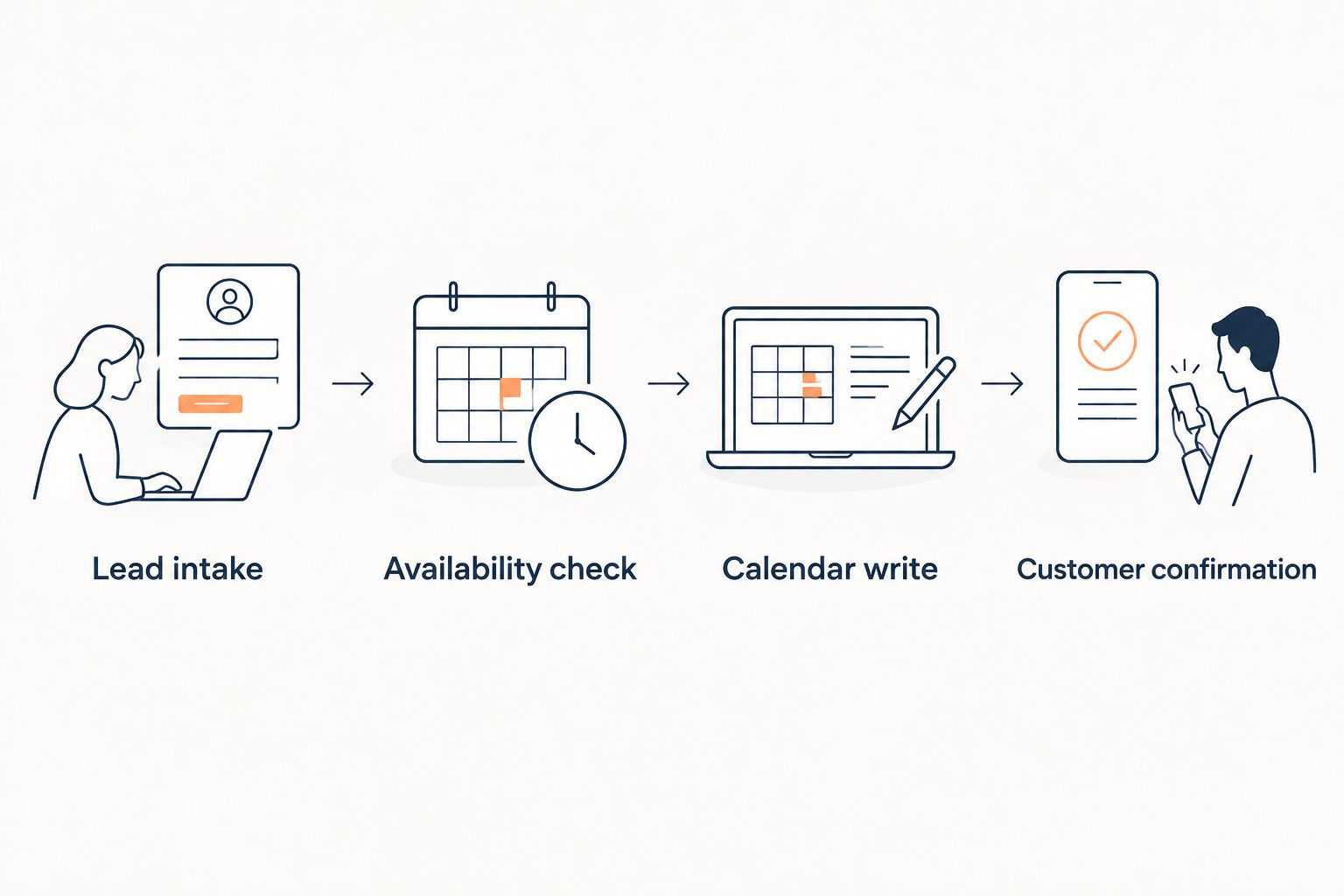
Run the booking flow in its actual order: Lead intake, Availability check, Calendar write, and Customer confirmation. Define how the workflow handles failure at each stage; do not test only the calendar view.
Validate the complete booking path
- Create a synthetic inquiry using a clearly labeled test customer. Do not use a real customer's phone number or email address for acceptance testing.
- Request an appointment in an open slot. Check the destination calendar, displayed start time, duration, service details, and booking reference against the original request.
- Repeat the test with an occupied slot. Verify the agreed conflict behavior; the mere presence of an existing event does not prove the booking workflow reads it.
- Change the synthetic appointment from 30 minutes to 60 minutes. Check whether the supported workflow updates the existing event and reevaluates the longer slot as required.
- Trigger the same booking action again through the supported test procedure. Confirm that a retry does not leave duplicate appointments.
- Review any test confirmation message. Its date, time zone, appointment status, and arrival-window wording must match the scheduling record.
Expected result: Your 2026 acceptance record shows the request, expected outcome, actual calendar result, and customer-message result for each scenario. Fix discrepancies before enabling customer-facing use.
Avoid setting an invented sync-speed target. Ask for the supported behavior, agree on an acceptance threshold for your operation, and measure the observed delay during testing.
Variant: update appointments after booking
New-event creation is only the first workflow. Rescheduling and cancellation require their own rules, particularly when office staff also edit Google Calendar directly.
Do not call the configuration two-way sync unless changes in both directions have been confirmed and tested. Writing bookings to Google Calendar does not establish that calendar edits return to the managed booking process.
Use this adjacent workflow when appointment changes are supported:
- Choose the authoritative system for rescheduling and cancellation. Tell staff where to make changes and where not to make them.
- Move the synthetic appointment to another open slot in that system. Check that the original calendar event changes rather than remaining alongside a replacement.
- Cancel the synthetic appointment. Verify the agreed calendar treatment and whether any customer message is required.
- Test an office edit made directly in Google Calendar. If reverse updates are not supported, document that limitation and keep operational changes in the authoritative system.
- Check what happens to follow-up messages after cancellation. A canceled booking must not remain eligible for messages that describe it as upcoming.
Expected result: Your 2026 operating instructions identify where staff make changes, which changes synchronize, and how unsupported edits are corrected. A documented one-way workflow is clearer than an untested two-way assumption.
Troubleshooting
The appointment appears at the wrong time
Compare the booking's stated time zone, the calendar's time zone, and the viewer's Google Calendar display settings. Check the actual event start and end, not just the time written in its description.
Use a synthetic appointment to reproduce the mismatch before changing business-wide settings. Retest customer confirmations after correcting the cause.
No event appears after a booking
Verify the Calendar ID, authorized account, destination calendar visibility, and permission scope. A hidden calendar and a failed event write require different fixes.
Have the setup owner inspect the booking outcome and connection error through the supported support process. Do not repeatedly resubmit a live customer booking while its status remains uncertain.
Two events appear for one appointment
Check whether multiple workflows created the event, a retry created another record, or a reschedule failed to identify the original. Compare booking references before deleting either event.
Require the setup owner to correct the duplicate-handling rule. Manual cleanup removes the symptom but leaves the next booking exposed to the same failure.
Bookings overlap with technician commitments
Confirm that the workflow checks the relevant technician calendar rather than only writing to a shared booking calendar. Review whether the blocking events are marked busy and whether travel time is included in the configured availability rules.
An overlapping event is not automatically a connector defect. First establish which calendars and event states the configuration is supposed to check.
A reschedule or cancellation does not carry through
Check whether the change originated in the authoritative system and whether that direction of update is supported. Then verify that the changed appointment retains its association with the original calendar event.
Until the cause is resolved, use the documented manual exception process. Do not promise automatic synchronization for an untested edit path.
Customize your workflow
Once the base booking path works, extend the rules by service type, location, or lead source. Each extension needs its own acceptance test; a repair inquiry and an installation consultation need not share the same scheduling requirements.
For RelayKite appointment setting, keep the managed-service brief specific: qualification questions, service-area exclusions, escalation contacts, and the point at which a customer receives confirmation. These are configuration requirements to agree on, not assumed features.
Review your 2026 setup after changes to staff, service hours, calendar ownership, or scheduling software. Keep the test record and operating instructions together so a new office manager can repeat the checks.
FAQ
How do I connect RelayKite to Google Calendar for HVAC appointments?
Confirm the supported connection method with the managed-service team, identify the destination calendar, and authorize the documented access. Then test bookings, conflicts, changes, and customer confirmations before enabling the workflow.
Does Google Calendar HVAC appointment sync mean two-way sync?
No. Creating calendar events does not establish that edits in Google Calendar update the booking workflow. Confirm and test each supported direction separately.
Can I use one Google Calendar for all HVAC technicians?
You can use a shared calendar as a central booking view, but that alone does not establish technician availability. Define how assignments, overlapping jobs, and individual commitments are checked.
Will calendar sync stop double bookings automatically?
Do not assume it will. Conflict prevention requires the booking workflow to check the relevant calendars and apply your availability rules before confirming an appointment.
What access should I give the booking workflow?
Grant only the access required by the confirmed connection method. Establish whether the workflow needs to read availability, create events, update events, or remove events, and keep calendar ownership under business control.
What happens if an HVAC customer cancels an appointment?
The configured cancellation workflow must define how the calendar record and customer messages change. Test cancellation from the authoritative scheduling system rather than assuming a deleted calendar event updates every other record.
Should Google Calendar or my dispatch system control appointment changes?
Choose one authoritative scheduling system and document it for staff. If dispatch controls technician assignments and appointment status, use Google Calendar according to that system's confirmed synchronization rules.
One last thing
Test a failed booking before approving a successful one. A workflow that creates an event correctly can still leave staff and customers with conflicting information when authorization expires or a calendar write fails.
RelayKite's managed appointment-setting setup should have an agreed exception owner and confirmation rule. A successful calendar event proves one path works; a controlled failure shows whether your operating process is ready.