
Instead of manually copying HVAC inquiries into Workiz, configure a lead-to-booking handoff that checks customer details, scheduling rules, and booking confirmation before sending an appointment message. A RelayKite Workiz integration requires confirmation of the supported connection method first; use the workflow below as an implementation specification, not a verified click-by-click connector guide.
- RelayKite Workiz integration starts with confirming supported access, scheduling permissions, and the booking handoff.
- Workiz job scheduling should confirm a saved appointment before triggering customer confirmation.
- Use dispatcher approval until duplicate handling, schedule conflicts, and failed bookings pass testing.
- RelayKite fits U.S. HVAC businesses seeking managed lead response and appointment setting.
Why this matters
An inquiry, a requested appointment, and a scheduled job represent different commitments. Your workflow must keep those states separate. Otherwise, a customer can receive a confirmation while your office still has an unscheduled request.
RelayKite is best for U.S. HVAC businesses seeking managed lead response and appointment setting. Its managed-service role makes the booking specification important: you need agreement on what the service collects, what the connection writes, and what your dispatcher still approves. Review RelayKite with those responsibilities in mind.
For your 2026 rollout, define success as an appointment recorded correctly in Workiz and communicated accurately to the customer—not merely a successful data transfer.
Before you start
- Get authorized access. Have your Workiz account administrator and RelayKite implementation contact confirm the supported connection method, required permissions, and responsibility for maintaining access. Do not assume a native connector, webhook, or particular automation platform is supported.
- Prepare your booking rules. Document service territory, accepted job types, business hours, appointment windows, scheduling ownership, escalation contacts, and approved customer messages. Include examples of requests that must reach a person.
- Resolve the scheduling gotcha. Creating a customer or inquiry record is not the same as reserving an appointment. Confirm that the proposed connection can perform the required scheduling action and return evidence of the saved booking before enabling automatic confirmations.
Keep credentials out of booking notes and customer messages. Share access through the authorization method approved for the connection, with only the permissions the workflow needs.
Connection method and booking ownership
Confirm the connection contract
- Ask for the supported route. Request the current connection documentation and a demonstration of the exact Workiz action your workflow needs. A demonstration should show a saved appointment, not just a received inquiry.
- Identify the booking owner. Decide whether the connection creates the appointment or submits a request for dispatcher approval. Name the person responsible when the handoff fails.
- Define the return information. Require the saved record reference, booking status, scheduled window, and failure details needed to reconcile an attempt. Confirm which information the supported connection actually returns.
- Record the boundaries. Document whether the agreed scope includes new bookings only or also updates, cancellations, and customer-record changes. Treat each additional action as separate scope requiring testing.
Expected result: You have an agreed connection method, a booking owner, and a clear definition of successful scheduling. If direct appointment creation cannot be demonstrated, use an approval handoff rather than describe the workflow as automatic scheduling.
Choose the booking control
These are workflow designs to discuss with your implementation team, not a statement that either is a built-in product setting.
| Workflow design | Best for | Advantage | Limitation |
|---|---|---|---|
| Dispatcher approval | Requests needing judgment or an unproven scheduling connection | A person checks the request before committing capacity | Requires staff action before confirmation |
| Automatic booking | Defined job types with tested scheduling access and booking rules | Removes the approval handoff for eligible requests | Requires reliable conflict checks, failure handling, and record reconciliation |
Start with dispatcher approval when booking behavior has not passed testing. Automatic booking belongs behind an eligibility gate, not behind every new inquiry.
For a 2026 implementation record, write down who approved the chosen design and which job categories it covers. That record gives your office a reference when someone asks why a particular inquiry was escalated instead of booked.
Lead qualification and record mapping
Define the booking information
- List required customer details. Specify the customer name, callback number, service address, requested service, and appointment preference your business needs. Decide which missing details block scheduling.
- Separate the address from the contact. A caller's phone number identifies a contact method, not necessarily the property requiring service. Establish how staff or the connection selects the correct service location.
- Map each destination. Have the implementation team identify the actual Workiz destination for each piece of information. Use your account's verified field names; do not build from assumed interface labels.
- Preserve useful context. Specify where the lead source, customer request, access instructions, and qualification notes belong. Keep customer statements distinct from your team's interpretation.
- Define matching rules. Agree on how the connection looks for an existing customer and existing booking before creating anything new. Send ambiguous matches for review rather than merging records automatically.
Expected result: A sample inquiry reaches the intended customer, property, and booking record without requiring staff to reconstruct the conversation.
Use a clearly marked test request such as 2026 integration test. Keep test information separate from real customer records, and follow your team's cleanup process after validation.
Set the eligibility gate
- Define accepted work. List the service requests allowed through automatic booking. Keep requests requiring diagnosis, scope review, or specialist assignment outside that route until your team approves their handling.
- Apply territory rules. Specify how the service address is checked against your operating area. A customer's preferred appointment does not override your service boundary.
- Require usable scheduling information. Define the appointment window, job duration rule, time zone, and capacity source before the booking attempt.
- Route exceptions deliberately. Assign an owner for unclear requests, urgent situations, conflicting information, and requests outside the approved scope. Use your business's approved escalation procedure.
Expected result: Every inquiry reaches an explicit outcome: eligible for booking, awaiting information, or requiring human review. None is silently treated as a confirmed appointment.
For qualification design, see qualifying HVAC leads before booking an appointment. Keep qualification separate from the final scheduling decision.
Booking confirmation and launch testing
Define the booking sequence
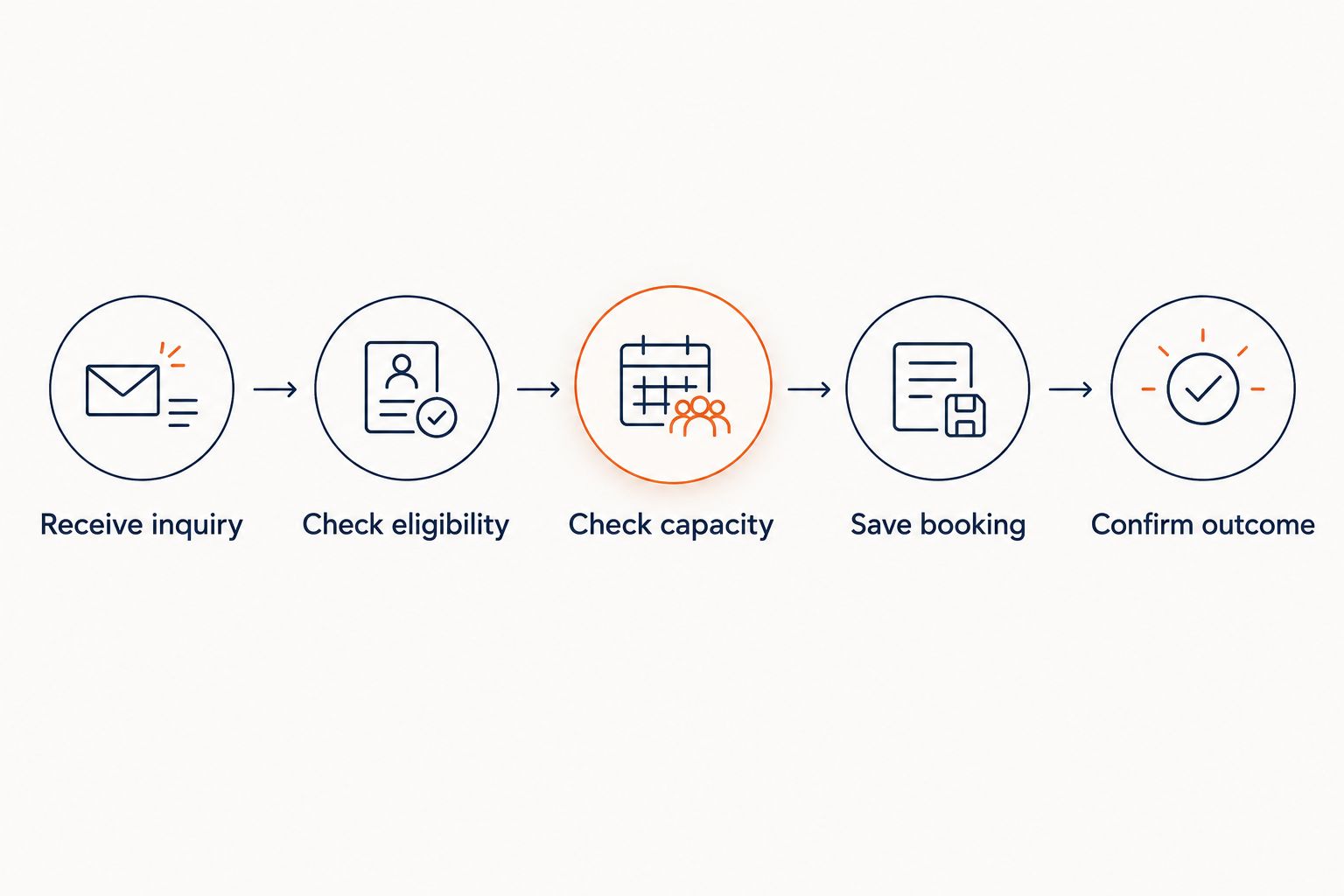
- Receive the inquiry. Capture the request and assign a stable reference that the implementation can use to recognize repeated delivery of the same inquiry.
- Check eligibility. Validate the required customer details, service address, job category, and escalation rules before attempting to schedule.
- Check capacity. Use the agreed scheduling source to evaluate the requested window. Do not promise a technician's attendance based only on a customer's preference.
- Save the booking. Perform the supported scheduling action and inspect the returned result. Preserve the saved record reference for reconciliation.
- Confirm the outcome. Send an appointment confirmation only after the booking is saved. If the result is unresolved, acknowledge receipt without claiming an appointment exists.
Expected result: The customer message reflects the saved scheduling outcome. A failed or uncertain write produces an exception for staff, not a false confirmation.
Test before customer-facing use
Use 3 test inquiries as a starting test set: an eligible new customer, an existing customer, and a request that must not book. These are prescribed test cases, not a performance benchmark.
- Inspect the eligible booking. Verify customer identity, service location, request notes, appointment window, and the message received by the test contact.
- Repeat the same inquiry. Submit the same test request again. Confirm that the duplicate-handling design prevents an unintended additional booking.
- Test a blocked request. Use an out-of-area address or another business-approved exclusion. Verify that the request reaches the assigned reviewer without a booking confirmation.
- Test an uncertain result. Ask the implementation team to simulate an unsuccessful or interrupted booking attempt. Verify that reconciliation happens before any retry creates another appointment.
- Record approval. Save the expected and actual outcomes in your 2026 launch checklist. Enable customer-facing use only for the cases that passed.
Expected result: Your dispatcher can trace an inquiry from receipt to its final booking or review outcome, including failures.
Discuss your booking handoff
Define lead capture, booking ownership, and exception handling for your HVAC business.
Second workflow: appointment changes after booking
A booking workflow also needs a decision about changes. A customer requesting a different time should not automatically become a new job request.
Best for existing appointments: Use an update workflow that identifies the original booking before changing it. Its advantage is continuity; its limitation is that update permissions and conflict handling require their own validation.
- Identify the appointment. Require the saved booking reference or an approved matching process. Escalate ambiguous matches.
- Validate the requested change. Recheck the new window, applicable capacity, and any job restrictions. The original appointment's eligibility does not prove the new time is valid.
- Apply the supported update. Confirm the connection can modify the intended record. If it cannot, route the request to your dispatcher without promising the change.
- Verify and notify. Read the resulting booking state before telling the customer the appointment moved. Preserve the original booking if the change fails.
Expected result: A reschedule changes the correct appointment or reaches a person for action. It does not leave the customer with conflicting confirmations.
Keep cancellation handling separate. Decide who releases the reserved capacity and which acknowledgment is appropriate before including cancellations in scope.
Troubleshooting
The inquiry arrives, but no appointment appears
Check the destination action. The handoff might be designed to capture an inquiry rather than schedule work. Compare the agreed action with the saved record, then inspect permissions and any required information rejected during the attempt.
The same request produces duplicate bookings
Pause automatic booking and inspect matching and retries. Confirm the implementation recognizes repeated delivery of the same inquiry and checks for a saved result before trying again. Do not use a customer's name alone as the duplicate rule.
The appointment lands in the wrong window
Check time-zone conversion and appointment-window mapping. Compare the customer's requested local time with the stored booking and the confirmation message. Include a daylight-saving boundary in your test plan where applicable.
The customer receives confirmation after a failed booking
Move confirmation behind verified booking success. An inquiry acknowledgment and an appointment confirmation need separate conditions and wording. Route uncertain results to staff for reconciliation before issuing a final message.
Two requests compete for the same capacity
Inspect the final capacity check and conflict response. An earlier schedule lookup does not establish that capacity remains open when the booking is saved. Require a defined rejection or review path when the final attempt cannot reserve the intended window.
Customize your workflow
Expand the RelayKite Workiz integration by job category rather than enabling every request at once. Best for controlled expansion: approve another category only after its information requirements, scheduling rules, and exception route pass the same tests.
Your 2026 operating review should include failed writes, duplicate attempts, unresolved requests, and messages that disagreed with the final schedule. Assign an owner to each exception type. A workflow is not complete when the successful path works; staff also need a usable recovery path.
Keep response handling and dispatch authority distinct. Collecting a customer's preferred time can remain useful even when a dispatcher must make the final appointment decision.
FAQ
How do I connect RelayKite to Workiz?
Start by confirming the supported connection method with the implementation team and your Workiz administrator. Then agree on booking ownership, map required information, and test saved appointments before enabling customer confirmations.
Is there a native Workiz connector for this workflow?
A native connector is not established by this guide. Obtain current connection documentation and verify the exact scheduling action before choosing an implementation route.
Can this workflow automatically schedule every HVAC inquiry?
Automatic scheduling should cover only approved requests that pass your qualification and capacity rules. Route unclear, excluded, or unsuccessful requests to a named staff member.
Should I start with dispatcher approval or automatic booking?
Start with dispatcher approval when scheduling behavior has not passed testing. Use automatic booking only for defined cases with verified record creation, conflict handling, and accurate confirmations.
How do I prevent duplicate Workiz appointments?
Require a stable inquiry reference, existing-booking checks, and retry handling that reconciles uncertain results. Test repeated delivery of the same request before launch.
Can the workflow reschedule an existing appointment?
Rescheduling requires a separately verified update capability. Identify the original appointment, validate the requested window, and confirm the saved change before notifying the customer.
What should happen when the booking connection fails?
Send the request to the assigned reviewer and avoid claiming the appointment is confirmed. Reconcile the booking result before retrying so an uncertain response does not create another appointment.
One last thing
The most important test is an interrupted booking attempt. Ask what happens when Workiz saves an appointment but the connection does not receive the result. Your implementation needs a reconciliation rule before it retries; otherwise, the recovery attempt can become the duplicate.