

Instead of manually moving HVAC inquiries into your scheduling queue, configure a Housecall Pro AI appointment booking integration only after confirming the connection method, booking permissions, and schedule rules. The workflow below defines how to prepare RelayKite for that connection, test appointment creation, and keep unverified requests out of your confirmed schedule.
- RelayKite provides managed lead response and appointment setting for U.S. HVAC businesses.
- A Housecall Pro AI appointment booking integration needs verified access before automatic scheduling begins.
- Keep lead response, appointment requests, and confirmed bookings separate.
- Test customer matching, scheduling rules, and failure handling before sending live inquiries through the workflow.
Why this matters
RelayKite is best suited to U.S. HVAC businesses seeking managed lead response and appointment setting. Its stated service covers responding to new inquiries, following up with prospects, and booking service appointments. Review RelayKite with that service scope in mind, rather than treating it as a self-service scheduling plugin.
A customer agreeing to a time is not the same as an appointment appearing correctly in your operating schedule. Your workflow needs a clear boundary between collecting information, requesting an appointment, and confirming that the booking actually succeeded.
For your 2026 setup, make verified appointment creation the release requirement. A successful conversation alone does not prove a successful integration.
Before you start
- Arrange authorized access. Have the Housecall Pro account administrator and the person responsible for your RelayKite setup involved. Confirm the supported connection method and its required permissions before sharing credentials or configuring anything.
- Prepare your operating rules. Supply service areas, accepted job types, working hours, appointment windows, scheduling restrictions, and the person responsible for exceptions. Include the information dispatch needs before accepting an appointment.
- Resolve the booking gotcha first. Confirm whether the connection can create the scheduling record your business actually uses—not merely capture a lead or send a notification. Require a way to distinguish a successful booking from a failed attempt.
Do not substitute a lead notification for a booking confirmation. Also, do not assume a native connector, API connection, particular account entitlement, or named menu exists without confirmation from the relevant provider.
This is a configuration and acceptance guide, not a verified sequence of product-screen clicks. Use the providers' current instructions for the connection method they approve for your account.
Choose your booking mode
Choose the booking mode before mapping information. These are workflow choices, not claims that either mode is already supported by a particular connector.
| Workflow | Best for | Advantage | Limitation | Release condition |
|---|---|---|---|---|
| Automatic booking | Routine requests with explicit scheduling rules | Removes manual appointment entry when the connection supports it | Incorrect rules can place unsuitable work on the schedule | Verify successful appointment creation and exception handling |
| Staff-approved booking | Requests requiring dispatch judgment | Keeps a person responsible for accepting the appointment | Leaves a manual approval step | Assign an owner and make pending requests visible |
Start with staff-approved booking when dispatch rules are not explicit. Move eligible requests to automatic booking only after the connection and scheduling behavior pass your tests.
RelayKite's managed appointment-setting model fits businesses that want help handling inquiries. The trade-off is that your business still has to define what can be booked, what needs approval, and what must be declined. A managed service does not remove those decisions.
Lead intake configuration
The intake stage determines whether the scheduling stage receives usable information. Build this part of your 2026 workflow around the lead sources you actually use, rather than assuming every channel is connected.
- Select one lead source. Start with a source the providers confirm can feed the agreed connection. Document how an inquiry enters the workflow and who owns it if delivery fails.
- Define the intake information. Specify customer name, contact details, service address, requested work, and scheduling preference. Identify which information is required before a booking attempt.
- Separate urgency from routine scheduling. Write rules for requests requiring immediate staff attention. Do not let an appointment-setting conversation substitute for emergency assessment or technical diagnosis.
- Define contact permission handling. Tell the setup team how communication permissions, opt-outs, and channel preferences should be handled. Have the responsible person review applicable requirements before enabling automated outreach.
- Assign an exception owner. Name the person or team that receives incomplete, unsupported, or failed requests. Use 1 accountable owner for the initial pilot so responsibility stays clear.
Expected result: a test inquiry reaches the intended queue with the information needed for scheduling, or it reaches the exception owner with a clear reason it cannot proceed.
Follow the inquiry from its original source through the handoff. If the original request and the scheduling request cannot be matched, fix that traceability problem before enabling booking.
Customer and appointment mapping
Mapping translates a conversation into the information your scheduling process needs. Field names and available record types depend on the approved connection; use the actual labels in your account rather than copying assumed labels from another setup.
- Document the destination record. Confirm what the connection creates in Housecall Pro and where dispatch will see it. Ask the administrator to demonstrate the result with a test request.
- Set customer-matching rules. Decide how the workflow identifies an existing customer. Define what happens when a name matches but the address differs, or when contact information is incomplete.
- Map service details. Preserve the customer's requested work separately from your internal service classification. A customer's description of a problem is not a technician's diagnosis.
- Map scheduling information. Specify the requested window, business time zone, service location, and any assignment restrictions. Document which system supplies the scheduling decision.
- Separate internal notes from customer messages. Keep dispatch instructions in the appropriate internal destination. Send customers only the information your business has approved for confirmation.
Expected result: dispatch can open the test record and identify the customer, location, requested service, appointment window, and current status without reconstructing the conversation.
For your 2026 mapping review, keep a written record of the approved source and destination for each required item. This gives the account administrator something concrete to check when a record arrives incomplete.
Schedule and confirmation rules
The scheduling stage must decide whether a request is eligible, whether a time is acceptable, and whether creation succeeded. Keep those decisions separate so a failure does not turn into an incorrect customer confirmation.
- Define eligibility. List the service types and locations allowed into automatic booking. Route everything outside that scope to staff review.
- Specify capacity rules. Document appointment windows, job-duration assumptions, travel considerations, and technician restrictions. Require the setup team to explain how the approved connection applies those rules.
- Choose the confirmation boundary. Permit a confirmed-booking message only after the destination system reports successful creation. Until then, describe the interaction as a request awaiting confirmation.
- Set failure handling. Decide what happens when access fails, the requested time is rejected, or the destination result is unclear. Do not repeatedly create new records to resolve an uncertain result.
- Document the handoff sequence. Use the same sequence in operating notes: Lead intake, Customer matching, Schedule check, Booking result, Staff review.
Expected result: an eligible test request produces a verified scheduling record and the correct customer message. An ineligible or unsuccessful request produces a visible staff handoff instead.
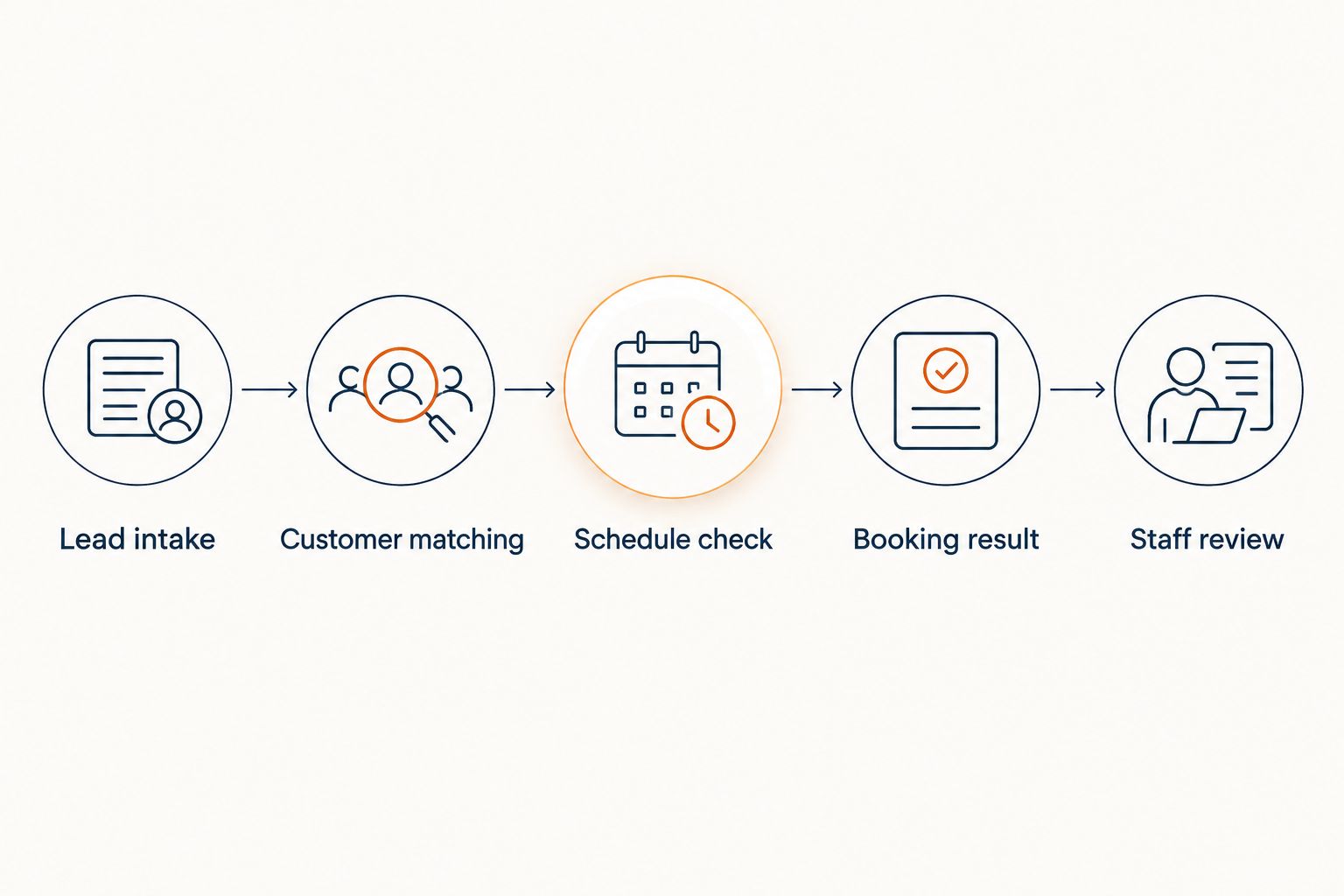
Treat confirmation wording as an operational control. An acknowledgment says you received the inquiry; a confirmation says your business accepted a specific appointment. Your workflow should never blur that distinction.
Connection testing and release
Test the approved connection before routing ordinary customer inquiries through it. Use authorized test information and make sure test records cannot be mistaken for real service work.
- Run a routine booking test. Submit an eligible request with complete information. Verify the customer match, destination record, scheduling window, and customer message.
- Run an exception test. Submit a request outside the approved service area or booking scope. Verify that it reaches staff review without receiving a confirmed appointment.
- Run a failure test. With the setup team's assistance, test an unsuccessful or uncertain write to the destination. Verify that the request remains visible and does not generate duplicate bookings.
- Compare both sides. Check the original inquiry against the final scheduling record. Look for missing addresses, changed time windows, lost notes, and inconsistent status.
- Approve a limited release. Enable only the lead source and service scope that passed testing. Keep a documented way to suspend automatic booking while preserving inquiry handling.
Expected result: all 3 test cases—routine booking, exception handling, and failed creation—produce the intended outcome before release.
Record who approved the configuration and when. Your 2026 release checklist should identify the tested connection method, permissions, booking scope, and exception owner, not simply mark the integration as connected.
Second workflow: when a customer changes the request
Changes require a different workflow from new inquiries. A customer correcting an address, changing a preferred time, or withdrawing a request should not automatically create another appointment.
Configure this variant only if the providers confirm that the connection supports the necessary updates. Otherwise, route changes to staff.
- Identify the existing inquiry or appointment before processing the change.
- Compare the requested change with the current scheduling record.
- Apply the approved update or send it to dispatch for review.
- Confirm the resulting status before sending the customer an updated message.
Expected result: the original record stays traceable, the final schedule reflects the accepted change, and the customer receives an accurate status.
Keep cancellation separate from rescheduling. Moving an appointment and withdrawing a service request have different operational consequences, even when both arrive as a short customer reply.
Troubleshooting
The conversation succeeds, but no appointment appears
Check whether the configured action captures a lead or actually creates a scheduling record. Then verify permissions and the destination result. Keep the customer-facing status pending until staff confirms the appointment exists.
The same inquiry produces duplicate records
Check repeated submissions, retries, and customer-matching rules. Require the workflow to check whether the original request already succeeded before retrying creation. Have staff reconcile existing duplicates rather than deleting records without review.
The appointment lands in the wrong window
Compare the customer's requested time, business time zone, and destination scheduling window. Confirm which system makes the final scheduling decision. Correct the rules and repeat the affected test before restoring automatic booking.
A changed request creates a second appointment
Check whether the workflow treats every incoming message as a new lead. Route replies through existing-record matching before deciding whether to update or create. If update support is not confirmed, send the change to dispatch.
Failed requests disappear from view
Inspect the exception route and its assigned owner. Every failed booking attempt needs a visible status and enough context for staff to continue the conversation. Suspend automatic booking if nobody can reliably find unresolved requests.
Customize your workflow
Expand the workflow by operational scope, not by adding channels indiscriminately. Separate residential service requests, installation inquiries, and work requiring dispatch review when their intake or scheduling rules differ.
For 2026 expansion, test each additional lead source and service type against the same acceptance criteria. Passing a routine service-call test does not establish that a different appointment type is ready.
Use the residential HVAC lead-response guide to define the intake side before widening automatic booking. Keep follow-up rules tied to the actual request status so an already-booked customer does not remain in an unresolved-lead queue.
FAQ
Can RelayKite connect directly to Housecall Pro?
Confirm direct connection support with the providers before configuring automatic booking. RelayKite's stated appointment-setting service does not, by itself, establish a native Housecall Pro connector or a particular connection method.
What do I need for a Housecall Pro AI appointment booking integration?
You need an approved connection method, authorized account access, defined scheduling rules, and an exception owner. Verify that the connection creates the scheduling record your dispatch team uses.
Should I start with automatic booking or staff approval?
Start with staff approval when your scheduling rules are not explicit. Automatic booking is appropriate only for requests whose eligibility, scheduling, and failure handling have passed testing.
How do I stop duplicate appointments?
Match each incoming request to its existing record before creating another appointment. Check the original booking result before retrying an unsuccessful or uncertain operation.
Can customers reschedule through the same workflow?
Use automated rescheduling only after the providers confirm update support for the approved connection. Otherwise, send the requested change to staff without creating a second appointment.
When should the customer receive a booking confirmation?
Send a booking confirmation only after appointment creation succeeds in the destination system. Before that point, acknowledge the request without saying the appointment is confirmed.
What should I test before enabling live booking?
Test a routine booking, an out-of-scope request, and failed appointment creation. Check the destination record, customer message, duplicate handling, and staff handoff for each case.
One last thing
Make an uncertain booking result a stop condition, not a retry instruction. A connection can leave you unsure whether a record was created; repeating the request without checking can turn that uncertainty into duplicate work. Resolve the destination status first, then continue the conversation.